

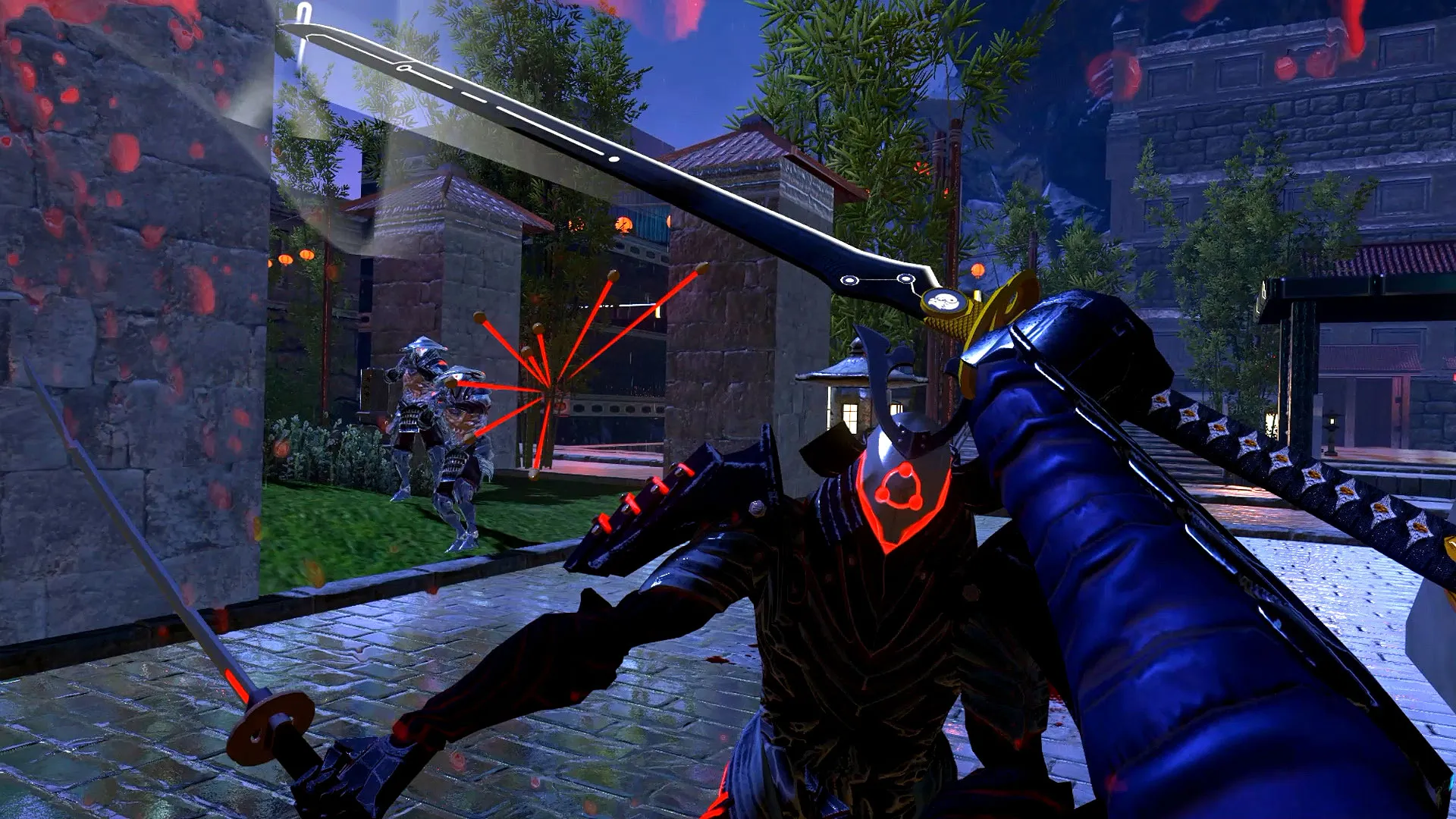
Smooth gameplay is crucial for an enjoyable gaming experience. Poorly optimized graphics can lead to low FPS, stuttering, and lag, even on high-end hardware. Optimizing graphics settings ensures that games run efficiently while maintaining visual quality, allowing players to react faster and enjoy immersive visuals. This guide explains how to adjust settings like resolution, textures, shadows, anti-aliasing, and more to achieve a balance between performance and quality. Whether you are using a low-end PC, a console, or a high-end gaming rig, these steps help improve frame rates, reduce lag, and provide a consistent, smooth gaming experience for both casual and competitive players.
Understanding Graphics Settings in Games
Before making changes, it’s important to understand what each graphics setting does. Resolution determines how many pixels are displayed on the screen; higher resolution looks better but reduces FPS. Texture quality affects the detail of surfaces, while shadows and reflections enhance realism but are resource-intensive. Anti-aliasing smooths jagged edges, and V-Sync prevents screen tearing by syncing FPS with your monitor’s refresh rate.
Other options like bloom, motion blur, ambient occlusion, and draw distance influence visual fidelity and performance. Understanding how each setting impacts your system allows you to adjust selectively. Lowering high-cost settings can significantly boost FPS without drastically compromising visuals. The key is to balance performance and aesthetics based on your hardware, game type, and personal preference. Knowing what each option does prevents guesswork and maximizes smooth gameplay.
Adjust Screen Resolution and Refresh Rate
Screen resolution and refresh rate are two of the most impactful settings for smooth gameplay. Lowering resolution reduces the number of pixels the GPU must render, which increases FPS. For instance, dropping from 4K to 1080p can significantly boost performance without heavily compromising visuals on smaller monitors. Refresh rate determines how many frames are displayed per second; higher refresh rates like 120Hz or 144Hz create smoother motion. Many competitive gamers prefer 120–240Hz monitors for fast-paced games because they allow quicker reactions.
To optimize, set resolution according to your monitor size and system capability, then match the game’s frame rate cap to your monitor’s refresh rate. Using full-screen mode instead of windowed mode can also improve performance, as it gives the GPU priority for rendering. Balancing resolution and refresh rate ensures both visual clarity and maximum FPS for smoother gameplay.
Optimize Texture Quality and Effects
Texture quality and visual effects heavily influence FPS, especially on older or mid-range hardware. Texture quality controls the detail of surfaces, objects, and characters in the game; higher textures consume more VRAM and GPU power. Games also include effects such as shadows, reflections, bloom, and ambient occlusion, which enhance realism but reduce performance. To optimize, set textures to medium or high rather than ultra unless you have a high-end GPU. Disable or reduce resource-intensive effects like motion blur and dynamic shadows for smoother gameplay.
Many open-world games allow you to tweak these options individually, so you can lower only the settings that affect FPS the most. This approach retains acceptable visual quality while boosting frame rates. By carefully balancing textures and effects, players can improve performance without making the game look outdated or visually unappealing.
Enable or Disable Anti-Aliasing and V-Sync
Anti-aliasing (AA) smooths jagged edges on objects, making visuals appear cleaner. However, it is computationally intensive and can lower FPS, especially on mid-range hardware. If smooth gameplay is your priority, disabling or reducing AA settings (FXAA, MSAA, or TAA) can significantly improve FPS without drastically degrading image quality. V-Sync prevents screen tearing by syncing frame rates with your monitor’s refresh rate. While this eliminates tearing, it can introduce input lag or reduce FPS if your system struggles to maintain the refresh rate.
A common solution is to use Fast Sync or Adaptive Sync if supported, which balances smooth visuals and performance. Competitive gamers often disable both AA and V-Sync to maximize FPS and reduce input lag. By fine-tuning these settings, you can maintain smooth, responsive gameplay while minimizing visual trade-offs.
Adjust Draw Distance and Level of Detail (LOD)
Draw distance and Level of Detail (LOD) determine how far objects are rendered and how detailed they appear. High draw distances allow you to see distant objects clearly but require more GPU power, potentially lowering FPS. LOD settings reduce the complexity of objects as they get farther from the player, which can improve performance without affecting immediate visuals. In competitive games, reducing draw distance slightly can increase FPS while still allowing players to spot enemies in time. For open-world games, lowering LOD can prevent stuttering in dense environments.
Many games allow separate adjustments for environment, shadows, and object LOD. Optimizing these settings based on your system ensures smoother gameplay in both competitive and exploration-focused titles. Adjust gradually and test performance to find the perfect balance between visual fidelity and frame rate.
Use Game Mode or Performance Optimization Tools
Many devices and PCs include Game Mode or performance optimization tools to improve FPS. These tools allocate more CPU and GPU resources to the game while limiting background processes that consume memory and processing power. On PCs, Windows Game Mode can be enabled via Settings > Gaming > Game Mode. Many smartphones have a Game Booster or Performance Mode that optimizes device resources, disables notifications, and prioritizes network usage. Third-party tools like Razer Cortex or MSI Afterburner also allow GPU overclocking and FPS monitoring.
Enabling these modes ensures the game has maximum access to hardware resources, reducing stutter and improving overall smoothness. Players can often combine these modes with graphics tweaks for the best results. These tools are especially useful for mid-range systems struggling to maintain consistent FPS during resource-heavy scenes.
Keep Drivers and Game Software Updated
Keeping your GPU drivers and game software updated is crucial for smooth gameplay. GPU manufacturers like NVIDIA, AMD, and Intel release updates to improve performance, fix bugs, and enhance compatibility with new games. Updating your drivers ensures that the game utilizes the GPU efficiently. Similarly, game patches often include performance optimizations that reduce FPS drops and fix memory leaks. On PCs, use tools like GeForce Experience or AMD Radeon Software to check for updates.
On consoles, ensure your system firmware and games are updated to the latest versions. Outdated drivers or software can cause crashes, stuttering, and inconsistent frame rates. Regular updates are a simple yet effective way to maintain optimal FPS while benefiting from improvements implemented by developers.
Balance Visual Quality and FPS
Balancing visual quality and FPS is essential for a smooth and enjoyable experience. Ultra graphics may look stunning but can drastically reduce FPS, especially on mid-range devices. Competitive gamers often prioritize high FPS (60+ or 120+) over ultra-quality visuals to improve reaction time. Casual players may prefer higher visual fidelity, accepting slightly lower FPS. Adjusting graphics incrementally helps find the ideal balance.
Start by reducing the most resource-heavy options, like shadows, anti-aliasing, and post-processing effects, while keeping textures and basic visuals intact. Monitor FPS using in-game tools or software overlays. The goal is to maintain consistent FPS to avoid drops during critical moments. Finding a personalized balance ensures both responsive gameplay and visually appealing graphics, improving overall enjoyment without sacrificing performance.
Conclusion
Optimizing graphics settings is key to achieving smoother gameplay in any game. By adjusting resolution, textures, shadows, anti-aliasing, draw distance, and other settings, you can improve FPS while maintaining visual quality. Using performance tools, keeping software updated, and balancing visuals with FPS ensures responsive, lag-free gaming. Experimenting with different settings allows players to find the perfect combination for their device and preferences. Consistent monitoring and adjustment help maintain optimal performance over time.
FAQs
What graphics settings improve FPS the most?
Lowering resolution, reducing texture quality, disabling shadows, and turning off anti-aliasing or motion blur are the most effective ways to increase FPS without significantly impacting visuals.
Should I prioritize FPS or graphics quality?
It depends on your preference and game type. Competitive gamers usually prioritize FPS for smoother gameplay, while casual players may choose higher visual quality for immersive experiences.
How can I balance performance and visuals?
Adjust settings incrementally, starting with the most resource-heavy options like shadows and post-processing effects. Monitor FPS using in-game tools and tweak until you find a balance that maintains smooth gameplay.