








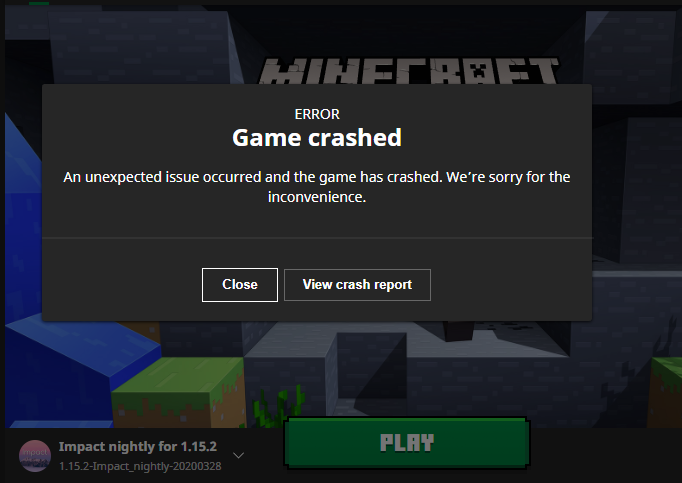
Experiencing game crashes on Windows 11 can be frustrating, especially when you’re in the middle of an intense session. Crashes can be caused by outdated drivers, software conflicts, insufficient hardware resources, or corrupted system files. Fortunately, many of these issues are preventable with the right steps. This guide provides 10 practical tips to help gamers stabilize their Windows 11 systems, minimize crashes, and enjoy smooth gameplay. Following these strategies will not only prevent crashes but also optimize overall system performance, ensuring your gaming experience remains uninterrupted and enjoyable.
Keep Windows 11 Updated
Windows updates often include crucial stability improvements, bug fixes, and security patches that can prevent game crashes. Running an outdated version may lead to conflicts between your operating system and the game, causing crashes or freezes. To check for updates, open Settings > Windows Update > Check for Updates, and install any available updates. Restart your PC after updating to ensure changes take effect. Regularly updating Windows 11 ensures compatibility with the latest games and system drivers, reducing unexpected errors.
Additionally, optional updates often include driver updates or patches that specifically address gaming performance. Maintaining an up-to-date system not only improves stability but also enhances security, which can indirectly prevent crashes caused by malware exploiting system vulnerabilities. Making Windows updates a habit is one of the simplest yet most effective ways to maintain crash-free gameplay.
Update GPU Drivers
Graphics drivers play a critical role in running games efficiently. Outdated or incompatible drivers are one of the leading causes of game crashes on Windows 11. Updating your GPU drivers ensures your graphics card can handle the latest games and features while maintaining stability. For NVIDIA cards, use the GeForce Experience app or visit NVIDIA’s website. AMD users can use Radeon Software, and Intel GPU drivers are available via the Intel Driver & Support Assistant. After installing the update, restart your PC to apply changes.
Updated drivers improve FPS, fix bugs, and prevent crashes caused by outdated APIs or rendering issues. It’s also beneficial to perform a clean installation when updating drivers, which removes old driver files that may conflict with new ones. Regularly checking for GPU driver updates ensures your system can run games smoothly without unexpected crashes.
Check Game Updates and Patches
Game developers frequently release updates and patches to fix bugs, optimize performance, and improve compatibility with operating systems like Windows 11. Running an outdated version of a game increases the likelihood of crashes, especially if the game is patched to work with newer system updates or drivers. Platforms like Steam, Epic Games, or Ubisoft Connect provide easy options to check for updates and automatically download patches.
Many updates also include performance optimizations that reduce memory leaks, fix rendering errors, or improve network stability, all of which contribute to fewer crashes. After updating, restart the game to ensure that all changes are applied. Regularly updating your games keeps them compatible with Windows 11 updates and other system software, reducing conflicts and providing a more stable gaming experience. This is a simple step that can prevent frustrating in-game crashes.
Adjust Graphics Settings
High graphics settings can overwhelm your GPU and CPU, especially on mid-range or older systems, leading to game crashes. Adjusting graphics settings can help maintain stability and prevent stuttering or freezes. Start by lowering resource-intensive options such as shadows, reflections, anti-aliasing, and post-processing effects. Reducing texture quality and draw distance also reduces VRAM usage, which can prevent crashes caused by memory overload. Many games allow custom graphics profiles, enabling players to balance visuals and performance based on their hardware.
For competitive gaming, prioritizing higher FPS over visual quality ensures smoother gameplay and fewer crashes. Additionally, switching to fullscreen mode instead of windowed or borderless mode can improve GPU resource allocation. Gradually adjusting settings while monitoring FPS and stability allows you to find the optimal configuration for crash-free gaming.
Disable Background Apps
Background applications can consume valuable CPU, GPU, and RAM resources, which can lead to crashes during gameplay. Programs such as web browsers, streaming apps, antivirus scans, or cloud sync tools can reduce system performance when running simultaneously with a game. To prevent this, close unnecessary applications before launching your game. On Windows 11, open Task Manager (Ctrl + Shift + Esc) to identify and terminate resource-heavy programs.
Additionally, disable startup apps through Settings > Apps > Startup to ensure they don’t run automatically in the background. For long gaming sessions, it’s also helpful to temporarily disable notifications to prevent interruptions. Freeing up system resources ensures your game has priority access to CPU, GPU, and memory, reducing the likelihood of crashes, stuttering, or freezes caused by resource conflicts. This simple step can significantly improve both stability and performance.
Check for Software Conflicts
Certain software can conflict with games and cause crashes, especially antivirus programs, overlays, or system utilities. For example, some antivirus tools may mistakenly block game files, while overlays like Discord, Steam, or GeForce Experience can interfere with GPU performance. To prevent conflicts, configure antivirus software to whitelist your game folder, ensuring it doesn’t scan or block critical files. Temporarily disabling overlays during gameplay can also prevent unexpected crashes.
Check if background utilities such as screen recorders, mods, or third-party performance tools are causing conflicts, and consider disabling them if issues persist. Some older games may require additional patches or settings adjustments to run smoothly alongside modern software. Identifying and resolving these conflicts ensures that games have uninterrupted access to system resources, leading to a more stable and crash-free experience.
Use Compatibility Mode
Older games may experience crashes on Windows 11 due to incompatibility with the latest operating system. Compatibility Mode allows you to run games as if they were on an older version of Windows, improving stability. To enable it, right-click the game executable or shortcut, select Properties > Compatibility, and choose a previous Windows version such as Windows 10 or Windows 7. You can also enable options like Run this program as an administrator, which can resolve permission-related crashes.
Testing different compatibility settings helps determine which configuration prevents crashes while maintaining functionality. This method is especially useful for legacy games or titles not officially updated for Windows 11, ensuring they run smoothly without constant errors. Compatibility Mode is a simple yet effective solution for preventing crashes caused by system software incompatibility.
Check System Resources
Insufficient system resources such as CPU, GPU, or RAM can lead to game crashes, especially during high-demand scenes. Monitoring resource usage allows you to identify bottlenecks and take corrective action. Open Task Manager to view real-time CPU, GPU, and memory usage while gaming. If your system consistently runs near maximum capacity, consider lowering graphics settings, closing background apps, or upgrading hardware components. Adding more RAM or upgrading to a faster GPU can prevent crashes caused by memory shortages or rendering delays.
Additionally, check your storage; games installed on slow or nearly full drives can also crash due to read/write delays. Maintaining adequate resources ensures your system can handle game demands without overloading, providing smoother, more stable gameplay and minimizing unexpected crashes during intense sessions.
Scan for Malware and Corrupt Files
Malware infections or corrupted system files can disrupt gaming performance and lead to frequent crashes. Malware may consume resources or interfere with system processes, while corrupt files can prevent games from running correctly. To protect your system, run regular Windows Defender scans or use reputable antivirus software. Additionally, use the System File Checker (SFC) to detect and repair corrupted Windows files. Open Command Prompt as administrator and run sfc /scannow to automatically scan and fix system file issues.
Verifying game files through platforms like Steam or Epic Games also ensures that game installations are intact and free from corruption. Keeping your system clean and file integrity intact prevents crashes, improves stability, and enhances overall performance, making this step essential for maintaining a reliable gaming environment.
Reinstall the Game or Windows (as last resort)
If crashes persist despite all other measures, a clean reinstall of the game may be necessary. Uninstall the game completely, remove leftover files from system folders, and then reinstall it from a reliable source. This eliminates corrupted game files and misconfigured settings that could be causing crashes. In extreme cases where system-level issues persist, a clean Windows 11 installation may be required. Back up important data before proceeding, and ensure all drivers are reinstalled after setup.
Reinstalling Windows can resolve deep system conflicts, corrupted registry entries, and persistent crashes that cannot be fixed through updates or settings tweaks. While this is a last resort, it guarantees a fresh environment for gaming, ensuring maximum stability and crash-free gameplay when other solutions fail.
Conclusion
Game crashes on Windows 11 can ruin the gaming experience, but most issues are preventable with proper maintenance and optimization. Regularly updating Windows, GPU drivers, and games, along with adjusting graphics settings, disabling background apps, and resolving software conflicts, ensures smoother and more stable gameplay. Monitoring system resources, scanning for malware, and using compatibility mode further reduce crashes. As a final step, reinstalling the game or Windows can solve persistent problems. By following these 10 tips, both casual and competitive gamers can enjoy uninterrupted sessions, improved performance, and a more reliable gaming environment.
FAQs
Why does my game keep crashing on Windows 11?
Game crashes on Windows 11 can be caused by outdated drivers, system updates, insufficient hardware resources, software conflicts, corrupted files, or malware infections.
How can I prevent game crashes without reinstalling Windows?
You can prevent crashes by updating Windows and GPU drivers, adjusting graphics settings, closing background apps, checking for software conflicts, running games in compatibility mode, and scanning for malware.
Does updating drivers really stop game crashes?
Yes. Outdated or incompatible GPU drivers are a common cause of crashes. Updating drivers ensures compatibility with games and improves system stability and performance.


