






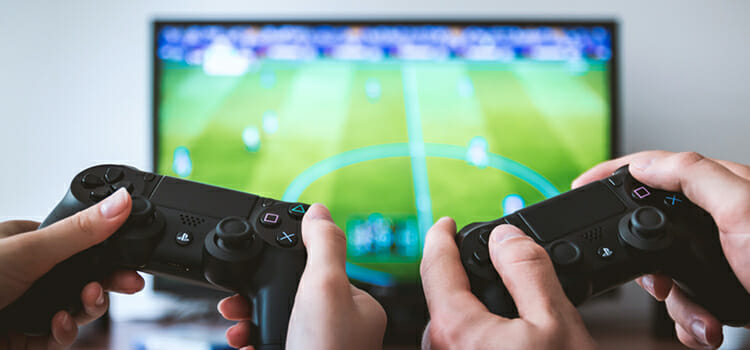
Input lag refers to the delay between a player’s action and the corresponding response on-screen. High input lag can affect reaction times, accuracy, and overall gaming performance, especially in fast-paced or competitive games. Reducing input lag is essential for achieving smoother and more responsive gameplay. This guide explores 10 practical ways to minimize input lag on any gaming monitor, whether you are using a high-end PC setup, a console, or a mid-range display. By understanding the causes of lag and optimizing your hardware and software settings, you can enjoy a more immersive and competitive gaming experience with faster reaction times and improved precision.
Understand What Causes Input Lag
Input lag can originate from several sources: your monitor, GPU, software, or even network. Display lag occurs when the monitor takes time to process and display the image after receiving the signal. System lag happens when the CPU or GPU takes longer to render frames due to heavy graphics load or insufficient resources. Peripheral lag stems from input devices such as mice, keyboards, or controllers that have slow polling rates or wireless latency. Additionally, network latency can sometimes be mistaken for input lag in online games.
Understanding these causes is critical because the solution depends on identifying the bottleneck. For example, if the monitor causes the delay, enabling low-latency or game mode may help. If the GPU is overloaded, reducing graphics settings will improve responsiveness. By analyzing and pinpointing the source of lag, you can apply targeted strategies to achieve smoother, faster gameplay.
Enable Game or Low-Latency Mode on Your Monitor
Most modern gaming monitors include a Game Mode or Low-Latency Mode designed to reduce display processing time. Enabling this mode bypasses unnecessary image enhancements, motion smoothing, and post-processing effects that can introduce lag. To activate it, open your monitor’s on-screen display (OSD) menu and select the Game or Low-Latency option. Some monitors also have Fast Response or Overdrive settings that further reduce pixel transition times, which can improve responsiveness.
Using this mode is especially beneficial for fast-paced competitive games, where every millisecond counts. For consoles, ensure the connected monitor’s low-latency or Game Mode is enabled, as many TVs add processing delays by default. Enabling low-latency mode ensures that input from your mouse, keyboard, or controller is displayed almost instantly, providing a more immersive experience and giving competitive players an advantage by reducing delays between actions and on-screen reactions.
Lower Resolution or Graphics Settings
High graphics settings and resolutions increase the GPU’s workload, which can cause frame rendering delays and contribute to input lag. Lowering your game’s resolution reduces the number of pixels the GPU needs to process, allowing frames to render faster. Similarly, adjusting graphics options such as texture quality, shadows, anti-aliasing, reflections, and post-processing effects decreases the processing burden. On high-end systems, these changes may not be necessary, but mid-range or older GPUs benefit significantly.
For example, dropping from 4K to 1080p can drastically improve responsiveness without compromising gameplay visibility. Maintaining higher FPS by lowering graphical load also reduces the gap between input and display, enhancing control precision. Balancing performance and visuals ensures smoother gameplay and minimal lag, particularly in competitive or fast-paced genres. Gradually adjusting settings while monitoring FPS and input responsiveness allows gamers to find the optimal configuration for low input lag.
Update Graphics Drivers and Monitor Firmware
Outdated GPU drivers or monitor firmware can contribute to increased input lag and overall instability. GPU manufacturers such as NVIDIA, AMD, and Intel regularly release driver updates that optimize performance, reduce rendering delays, and fix compatibility issues with new games. Updating drivers ensures your GPU can process frames efficiently, minimizing input delay. Similarly, monitor manufacturers release firmware updates that improve display processing and sometimes enhance low-latency or game mode features.
To update GPU drivers, use the manufacturer’s software utility or website, ensuring you perform a clean installation to remove old drivers. Monitor firmware updates usually require visiting the manufacturer’s support page and following the update instructions carefully. Keeping both GPU drivers and monitor firmware current guarantees smoother frame delivery, reduces lag, and enhances the overall responsiveness of your gaming setup, allowing for faster input-to-display feedback and a more competitive edge.
Use High Refresh Rate Monitors
A monitor’s refresh rate directly impacts input lag and responsiveness. Higher refresh rates, such as 120Hz, 144Hz, or 240Hz, display more frames per second, reducing the time between each frame update. This results in smoother motion and quicker response to inputs. Using a high refresh rate monitor allows the GPU to send frames faster, decreasing the perceived delay between an action and its on-screen result. Additionally, matching your game’s FPS with the monitor’s refresh rate maximizes responsiveness.
For competitive games, 144Hz or higher is recommended, while casual gamers may find 60Hz sufficient. It’s also important to ensure your system can maintain high FPS; otherwise, the benefit of a high refresh rate may be limited. Combined with low-latency settings and optimized graphics, high-refresh monitors significantly improve gaming experience by reducing input lag and providing fluid, precise gameplay.
Optimize V-Sync and G-Sync / FreeSync Settings
V-Sync synchronizes your GPU’s output with the monitor’s refresh rate to prevent screen tearing, but it can introduce input lag if FPS drops below the refresh rate. G-Sync (NVIDIA) and FreeSync (AMD) dynamically adjust the monitor’s refresh rate to match GPU output, reducing tearing without significant latency. To minimize input lag, enable G-Sync or FreeSync if supported by your monitor and GPU. If using V-Sync, consider turning it off for competitive gaming, or use options like Fast Sync or Adaptive V-Sync, which reduce lag while preventing tearing.
Fine-tuning these settings ensures smooth visuals without sacrificing responsiveness. For competitive players, disabling traditional V-Sync and using variable refresh rate technologies is often the best choice. Understanding the trade-offs between tearing and input lag allows gamers to choose the optimal setup for minimal delay and consistent performance.
Reduce USB and Peripheral Latency
Input lag can also stem from your peripherals, such as mice, keyboards, and controllers. Wireless devices may introduce latency compared to wired alternatives, especially if batteries are low or the signal is weak. Using wired peripherals with high polling rates (1000Hz for mice) ensures faster communication between the device and PC. Avoid connecting multiple high-bandwidth USB devices simultaneously on the same hub, as this can increase latency. Disabling unnecessary USB devices in Device Manager may also help.
Some gaming mice and keyboards include low-latency or gaming modes, which should be enabled. Proper cable management and ensuring drivers for peripherals are updated can further reduce delays. By optimizing peripherals, you ensure that input commands reach the PC instantly, complementing monitor and GPU optimizations for a complete reduction in overall input lag.
Close Background Applications and Processes
Background apps and processes can consume CPU, GPU, and RAM resources, indirectly increasing input lag. Applications such as web browsers, streaming tools, antivirus scans, and cloud sync software can interfere with game performance by limiting available system resources. To prevent this, use Task Manager (Ctrl + Shift + Esc) to identify and terminate unnecessary applications before launching a game. Additionally, disable startup programs via Settings > Apps > Startup to prevent background apps from launching automatically.
Ensuring maximum resources are available for the game reduces frame processing delays and improves input responsiveness. Using Windows Game Mode or third-party game boosters can automate this process by prioritizing game performance over background tasks. Maintaining a clean system environment ensures that the game receives uninterrupted CPU and GPU access, minimizing input lag and providing smoother, more responsive gameplay.
Use a Direct Connection for Console or PC Gaming
The type of connection between your system and monitor can affect input lag. HDMI and DisplayPort cables are standard, but adapters, splitters, or long cables may introduce additional latency. For PC gaming, DisplayPort is preferred for high refresh rate monitors and lower latency, while HDMI works well for most setups, especially consoles. Ensure you are using cables that support the monitor’s maximum resolution and refresh rate. Avoid using cheap or faulty cables, as they can add processing delays.
Consoles often benefit from directly connecting to the monitor rather than routing through AV receivers or splitters. Using a direct connection ensures that the signal reaches the display as quickly as possible, reducing input lag and preserving the benefits of other optimizations like high refresh rate and low-latency modes. Proper cable selection is a small but critical factor in minimizing delay.
Test and Monitor Input Lag
Measuring input lag helps you evaluate the effectiveness of your optimizations. Tools like RTSS (RivaTuner Statistics Server), online frame delay tests, and high-speed camera setups can quantify lag between input and display response. Many monitors include built-in test modes to check latency. Monitoring FPS and response times during gameplay allows you to fine-tune graphics settings, refresh rate, and V-Sync/G-Sync configurations.
Regularly testing ensures that system changes or new software updates do not introduce additional delays. Gamers can adjust settings iteratively based on measured lag to achieve optimal responsiveness. Consistent monitoring also helps identify if new peripherals, cables, or software introduce latency, allowing you to address issues proactively. By testing and adjusting settings, players can maintain minimal input lag, ensuring a smooth and competitive gaming experience over time.
Conclusion
Input lag can significantly affect gaming performance, but it is manageable with proper optimizations. By understanding the causes, enabling low-latency modes, adjusting graphics, updating drivers, using high refresh rate monitors, and optimizing peripherals, you can minimize delays between input and display. Additional steps like closing background apps, using direct connections, and monitoring lag ensure consistent responsiveness. Implementing these strategies provides a smoother and more competitive gaming experience, whether on PC or console.
FAQs
What is input lag, and why does it matter?
Input lag is the delay between your actions (like pressing a key or moving a mouse) and what appears on the screen. Lower input lag improves reaction time and gameplay responsiveness, especially in competitive games.
Does using a high refresh rate monitor reduce input lag?
Yes. Higher refresh rate monitors (120Hz, 144Hz, 240Hz) display more frames per second, reducing the delay between input and on-screen action for smoother and more responsive gameplay.
Are wired peripherals better than wireless for reducing input lag?
Generally, yes. Wired mice and keyboards have faster response times and higher polling rates compared to wireless devices, minimizing latency and improving control precision.


